KusArt
    AI Background Changer

    AI Background Changer

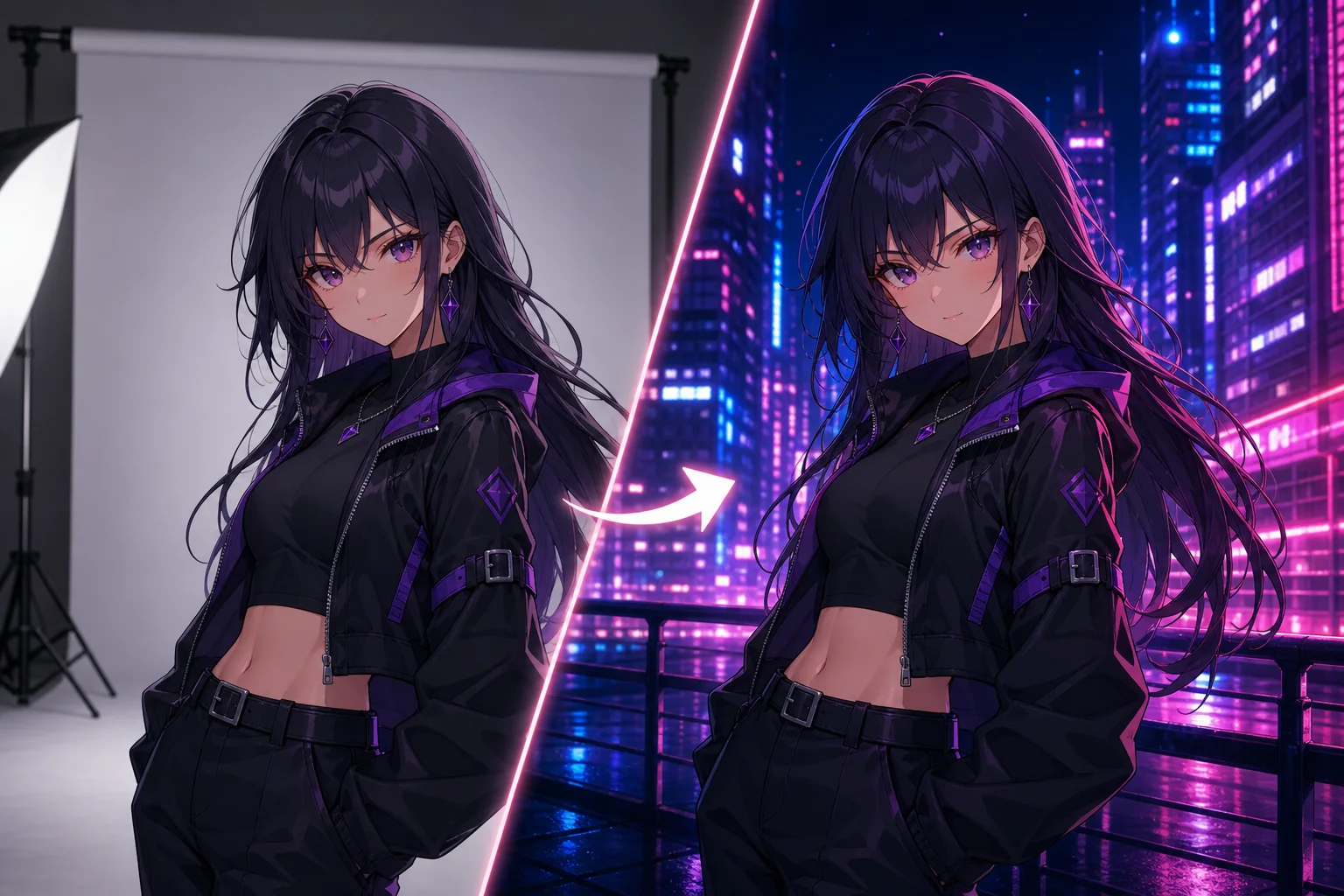
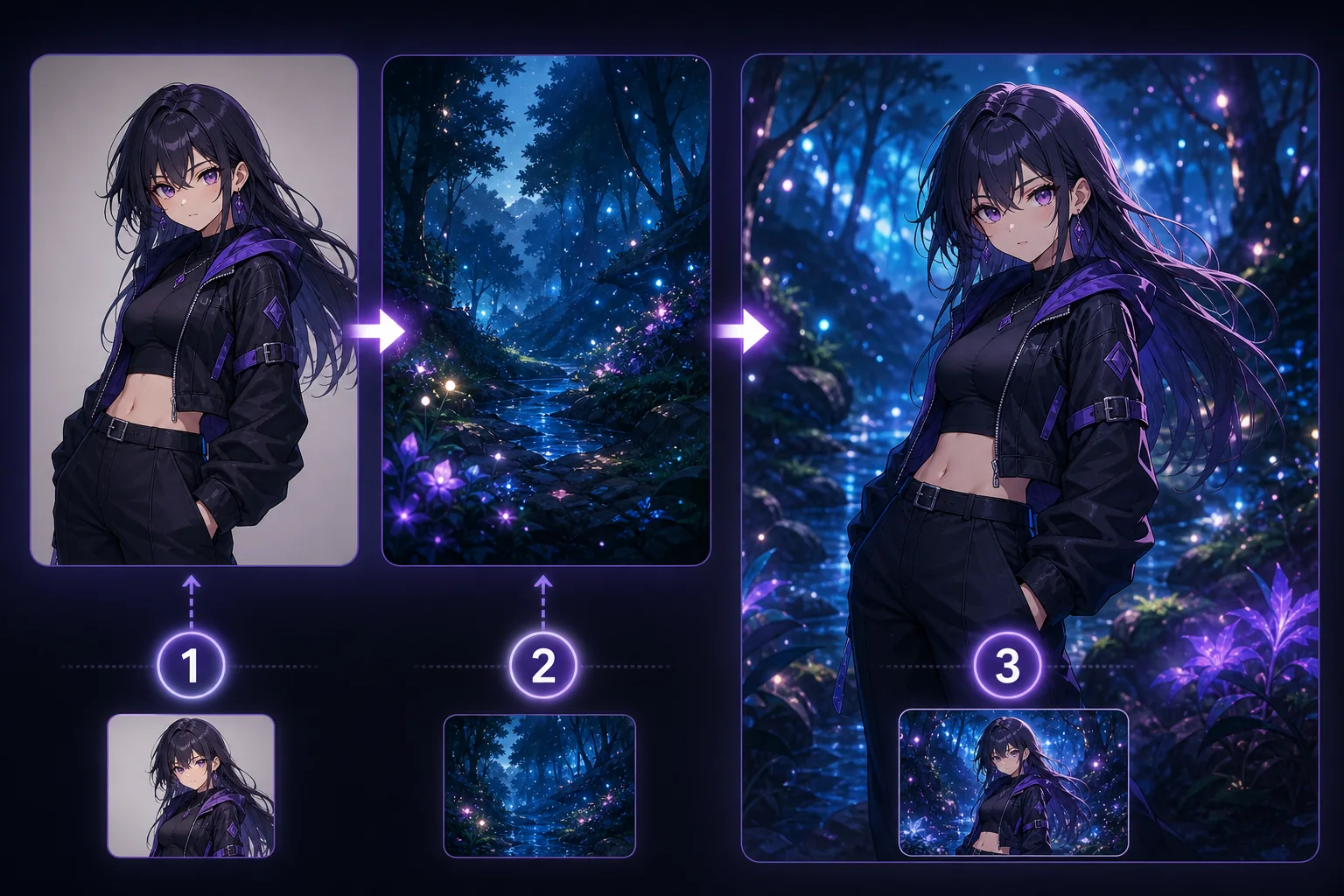
    Upload a character image and use background changer AI to replace the scene while preserving the character, pose, outfit, and anime style.

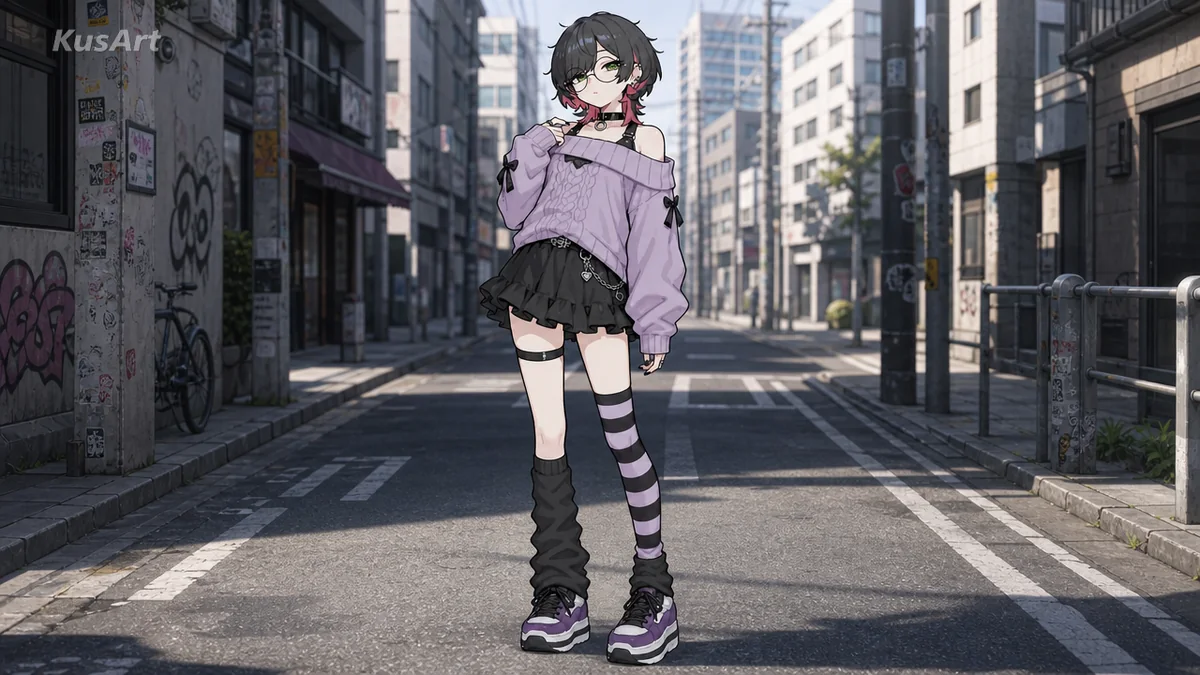
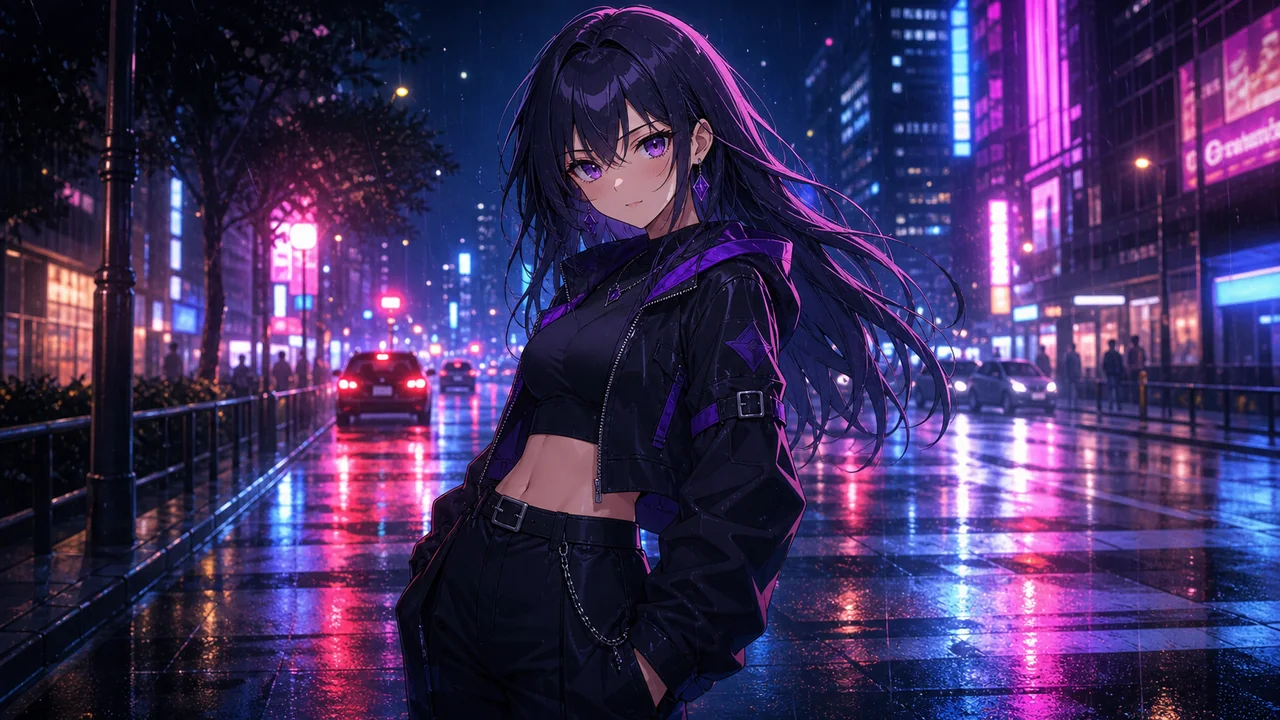
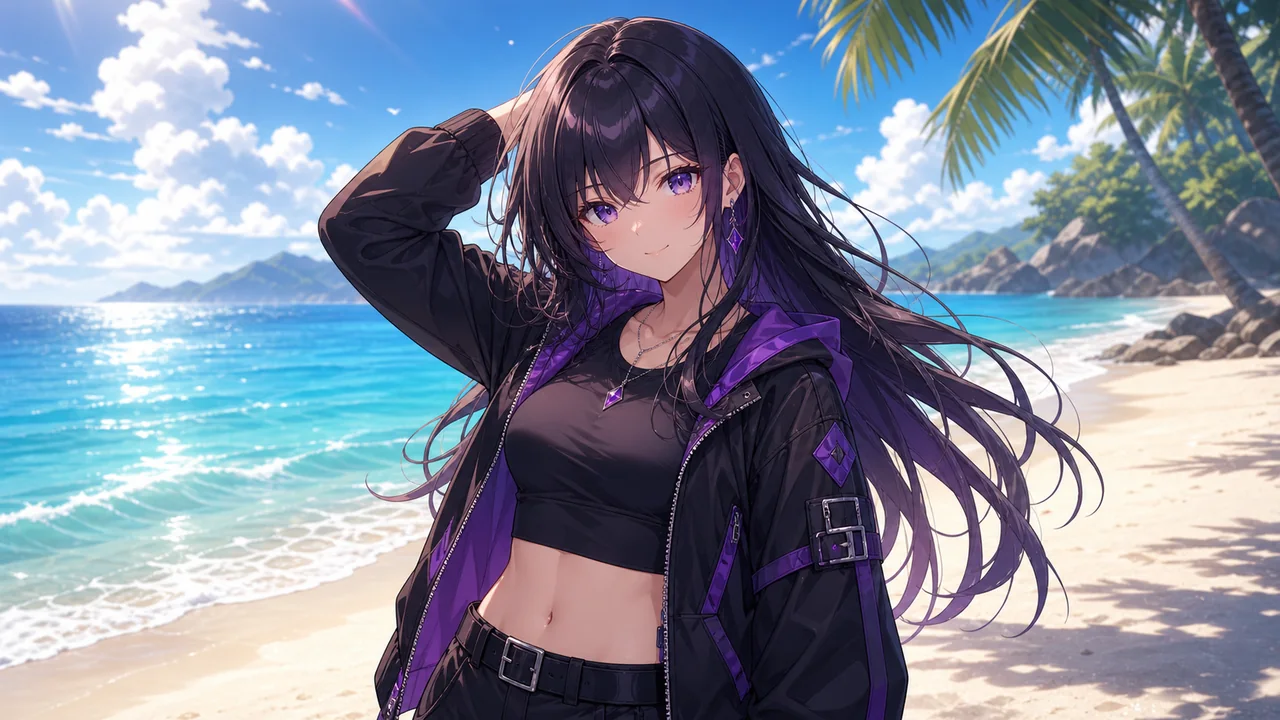
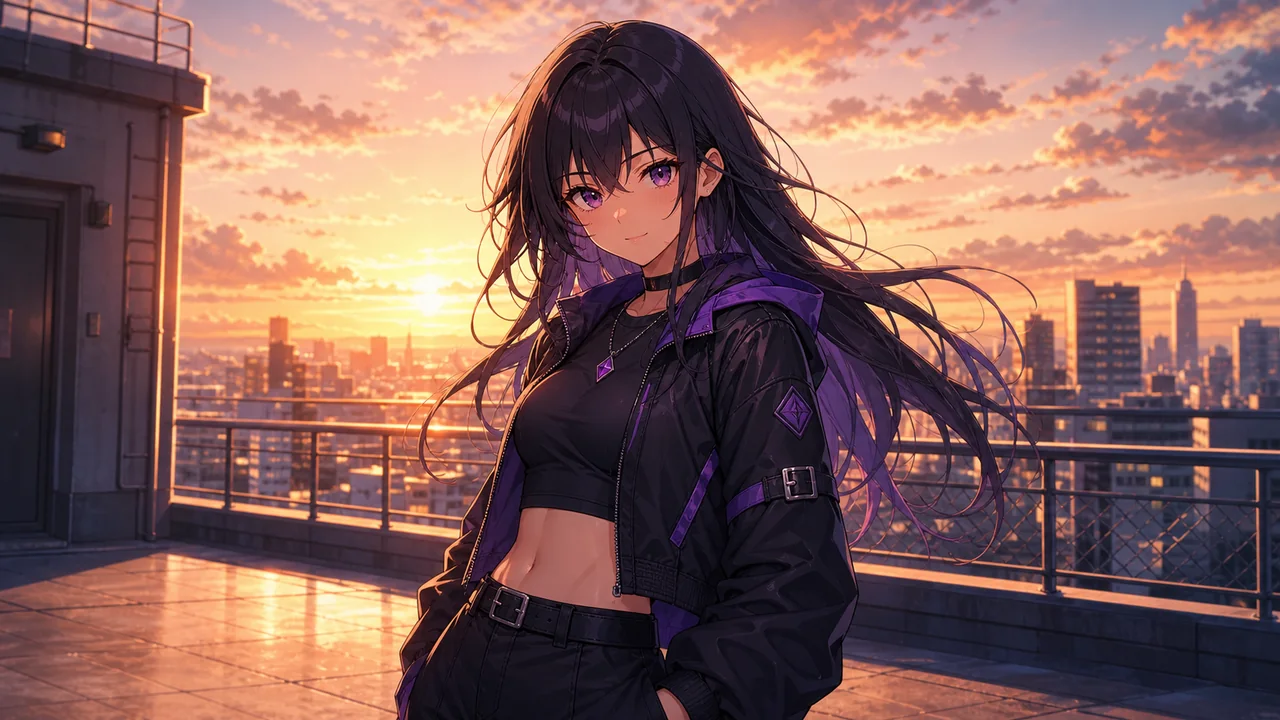
    City Street AI Background Changer result after
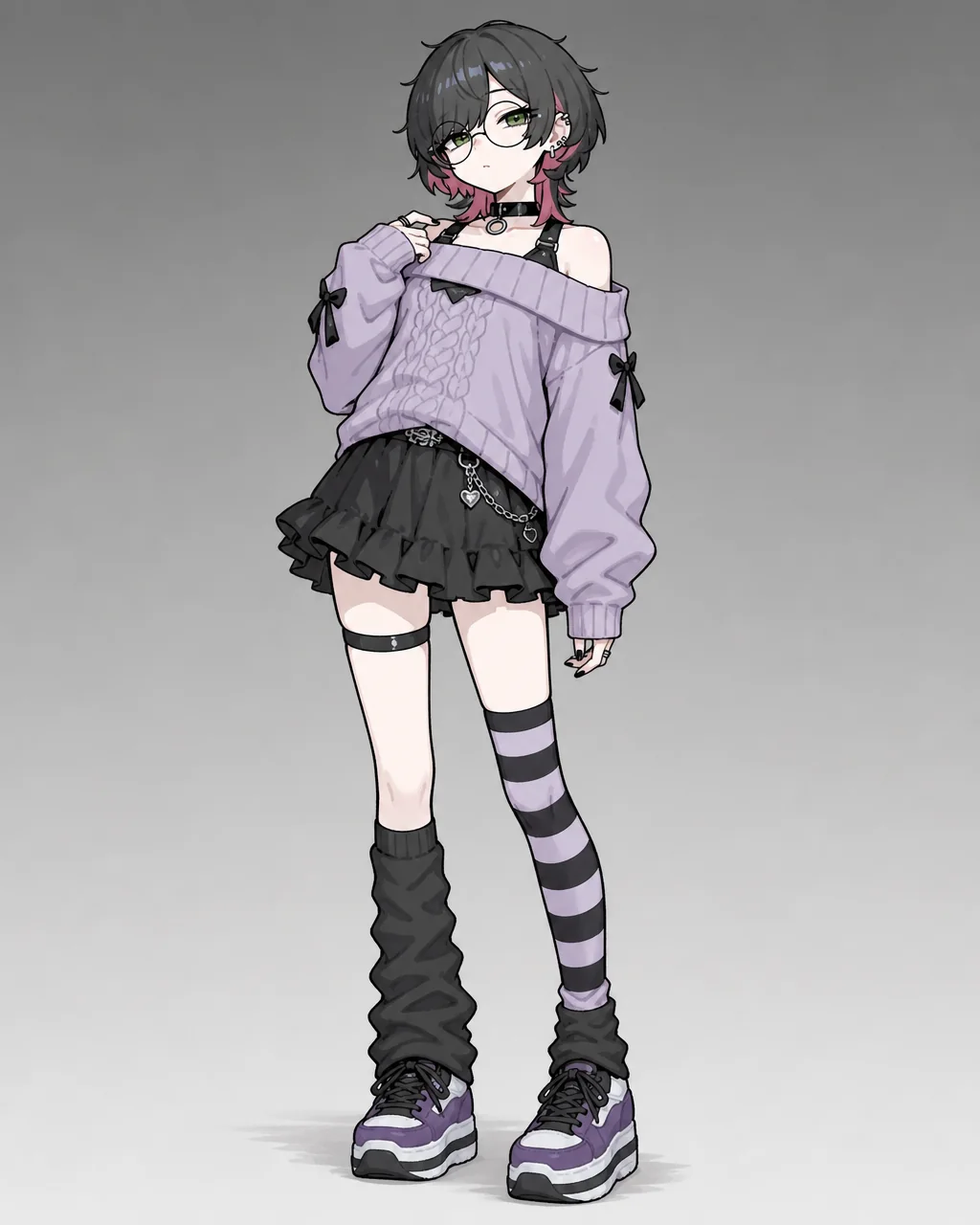
    City Street AI Background Changer result before

    Change Anime Character Backgrounds in One Click

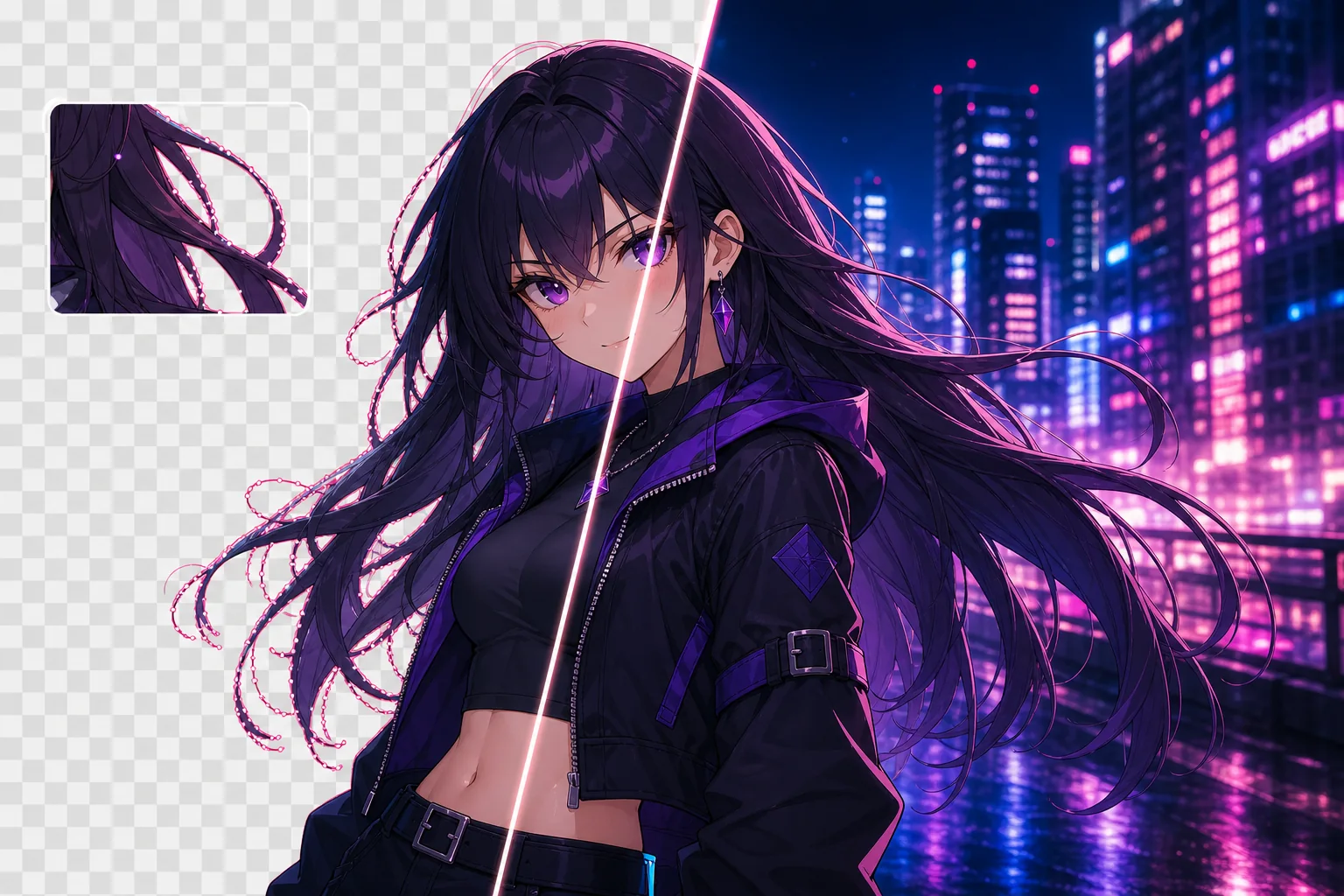
    Upload your anime character, choose a background preset or add a scene reference, and use the AI Background Changer to replace the environment without redesigning the character. The page is built for background changer AI workflows where the pose, outfit, face, lighting direction, and art style need to stay consistent across multiple scene ideas. Instead of masking hair edges by hand or repainting the whole illustration, you can move the same character into a neon city, classroom, fantasy forest, beach, bedroom, or school rooftop and compare results quickly.

    Try It Free
    Change Anime Character Backgrounds in One Click - AI Background Changer

    What Is an AI Background Changer?

    The AI Background Changer is a KusArt character-editing tool that takes one character reference image plus an optional scene prompt, preset, or reference image, then redraws the background while preserving the subject. It is different from a generic image editor because the prompt construction treats the uploaded character as the protected element and the scene as the editable layer. That means the tool is useful for anime background replacement, visual novel mockups, profile art, game concepts, and social posts where the character design should remain recognizable while the surrounding environment changes.

    What Is an AI Background Changer? - AI Background Changer

    Why Use AI to Change Character Backgrounds?

    Changing a background manually usually means cutting out the character, repainting the scene, matching perspective, fixing color harmony, and cleaning up light spill around hair and clothing. The AI Background Changer turns that process into a faster way to change a background with AI. You can test several environments, keep the same pose and outfit, and use History to compare results side by side. This is especially helpful when you already like the character art but need different scene contexts for a story, thumbnail, banner, or character sheet.

    Why Use AI to Change Character Backgrounds? - AI Background Changer

    Manual Background Replacement Slows Scene Testing

    Testing multiple anime environments by hand breaks the creative flow. You need to mask small hair details, rebuild shadows, repaint objects that overlap the character, and rebalance colors every time you try a new location. A broad background prompt can also accidentally redesign the character if the tool does not protect the subject. The AI Background Changer removes that bottleneck by focusing the edit on the environment and keeping the character anchored. Upload once, describe a new scene, add a reference if needed, and generate a background that fits the existing illustration. You can also start from art made in the AI Image Generator or OC Editor for a full Kusa workflow.

    Manual Background Replacement Slows Scene Testing - AI Background Changer

    Built for Background Replacement

    Choose a scene quickly, guide the result with a prompt or reference, and compare saved variations while the character remains the visual anchor.

    Feature 01

    Character-Preserving Background Replacement

    The generation prompt is wrapped around preserving identity, face, outfit, pose, linework, and lighting direction while changing only the background. This reduces the common problem where an editor replaces the whole image instead of treating the character as the subject to protect.

    Feature 02

    Preset or Custom Scene Direction

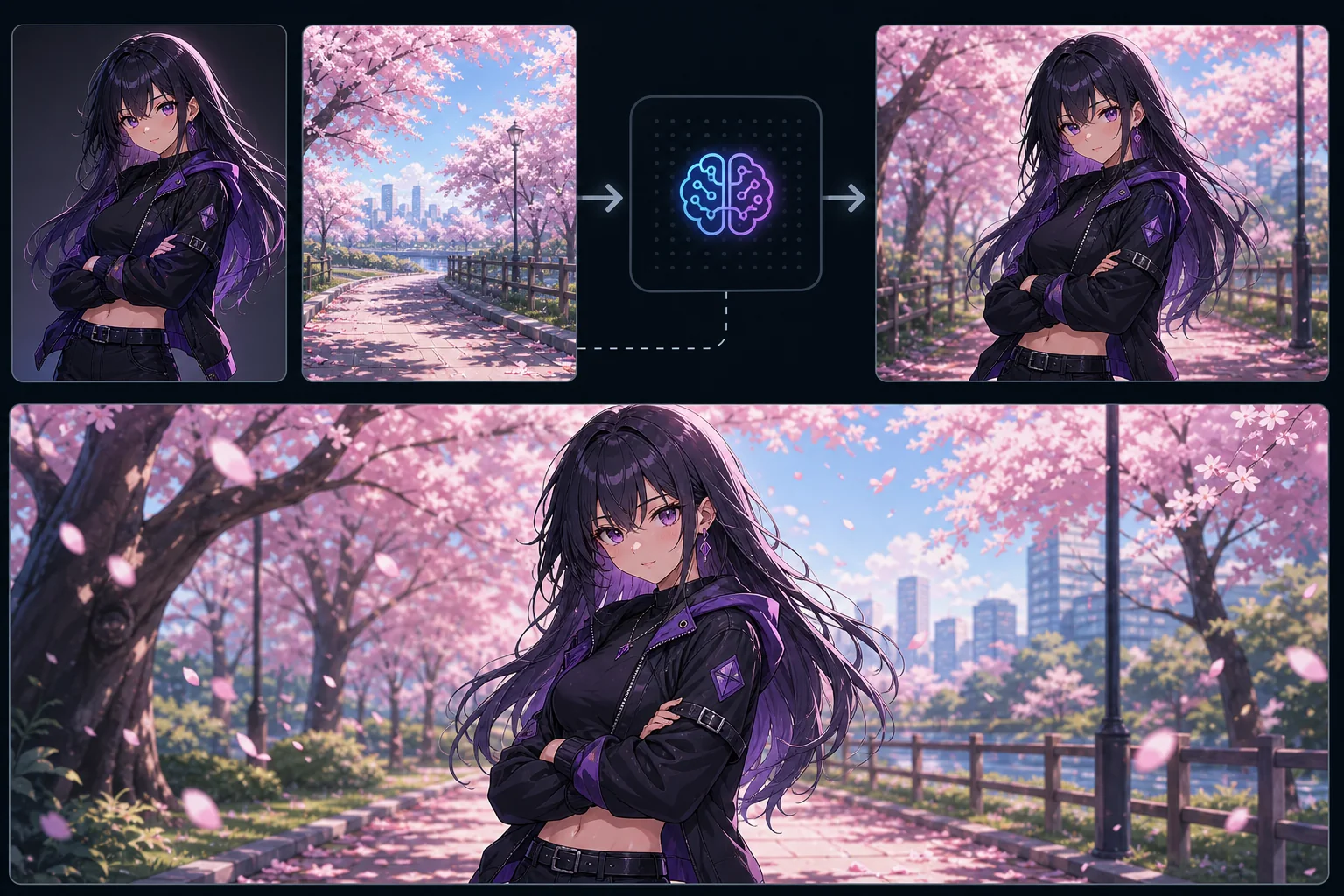
    Choose an OC Editor preset, write a background prompt, or upload a reference scene. Presets make common environments quick to try, while a reference image gives you more control over composition, mood, and lighting. Results save to History for easy comparison.

    Feature 03

    Anime Scene Examples

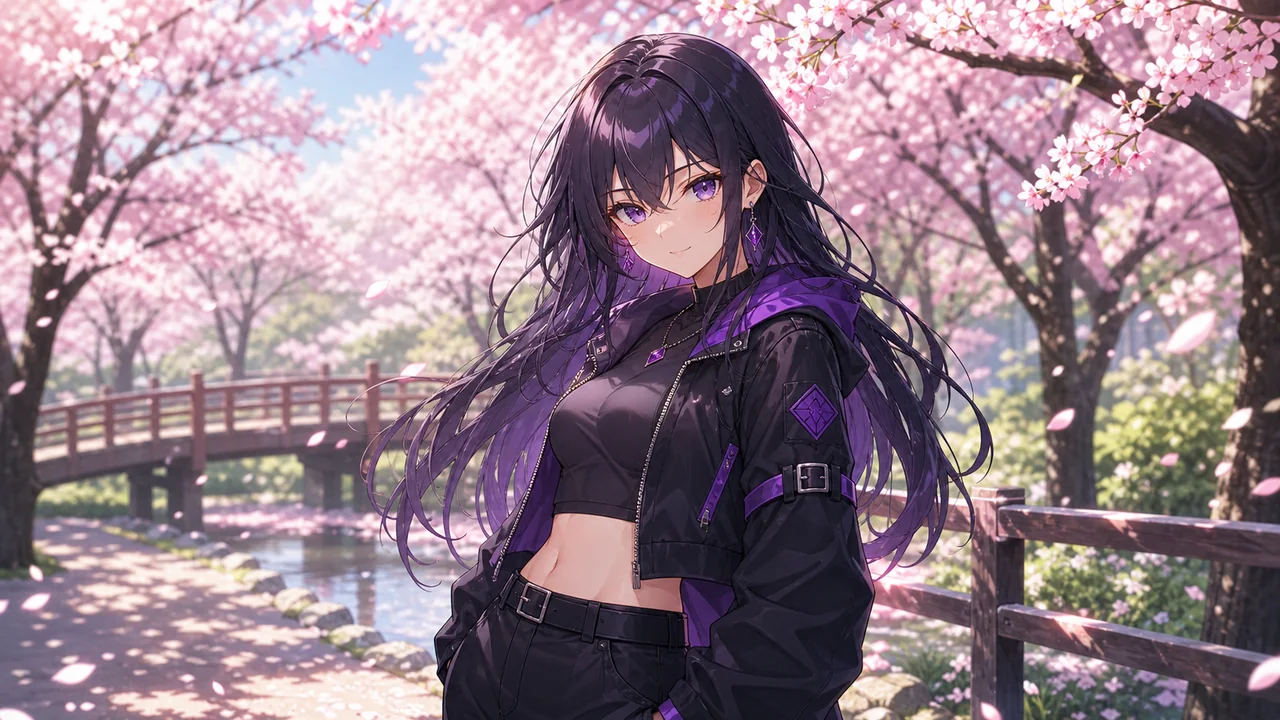
    Start with anime scene examples such as neon city streets, cherry blossom parks, school rooftops, beaches, fantasy environments, bedrooms, classrooms, and stage lighting. Each example provides a clear direction that you can customize instead of beginning with a blank prompt.

    From Upload to New Background

    Three steps from character image to background replacement, with optional reference input when you want stronger scene control.

    Step 01

    Upload Your Character

    Start with a clear character image. Portraits and full-body images both work, but a clean subject helps the AI preserve face, hair, outfit, and pose. If the character has transparent or simple surroundings, the replacement usually has more room to blend naturally.

    Step 02

    Choose a Background Direction

    Open the preset picker, add a scene reference image, or write a prompt such as neon city street, fantasy forest, school rooftop, beach sunset, cozy bedroom, or dramatic concert stage. The more specific the scene, the easier it is for the AI to match depth, mood, and lighting.

    Step 03

    Generate and Compare

    Click Change Background and preview the result. The image is saved to History so you can download it, reuse settings, edit again, or test another scene. Running a few variations is useful because backgrounds can change the whole mood of the character art.

    Ready to Change Your First Background?

    Upload a character, pick or describe a scene, and generate a new anime background in seconds. Try a few versions, compare them in History, and keep the one that matches your story or visual style best.

    Start Changing Backgrounds

    Popular Ways to Use the Background Changer

    Story Scene Variations - AI Background Changer

    Story Scene Variations

    Move the same character through city, classroom, rooftop, forest, shrine, bedroom, and beach scenes without redrawing the character each time. This is useful for visual novels, comics, roleplay posts, and scene planning.

    Profile and Banner Art - AI Background Changer

    Profile and Banner Art

    Create stronger character profile images by matching the background to the character mood or theme. A darker city scene, soft cherry blossom park, or bright beach can change how the same character reads at thumbnail size.

    Game and Visual Novel Assets - AI Background Changer

    Game and Visual Novel Assets

    Test sprites and character illustrations against different environments for concepts, route art, dialogue scenes, and promotional mockups. Keeping the character stable makes it easier to judge whether the background supports the scene.

    Social Media Edits - AI Background Changer

    Social Media Edits

    Refresh an existing anime character image with a new background for posts, thumbnails, seasonal artwork, event banners, and profile updates. It is faster than commissioning or repainting a complete alternate scene.

    Frequently Asked Questions

    Can I change only the background without changing the character?+
    Yes. The page prompt is designed to replace the background while preserving the character, pose, outfit, lighting, and anime style. As with any AI edit, clearer source images usually produce more consistent character preservation.
    Can I upload a background reference image?+
    Yes. Upload the character first, then add a second image as an optional visual reference for the replacement background. A reference image is helpful when you want a specific room layout, lighting mood, or environment type.
    What backgrounds work best?+
    Clear scene ideas work best for a background changer AI workflow: city street at night, school rooftop, cherry blossom park, fantasy forest, beach sunset, stage, bedroom, cafe, classroom, or shrine. Avoid mixing too many unrelated locations in one prompt.
    Will the character style stay consistent?+
    The AI is instructed to keep the original character identity, outfit, pose, linework, and lighting direction while blending the new environment behind them. If the source image is very low-resolution or heavily cropped, some style variation may still happen.
    Should I use a prompt, a preset, or a reference image?+
    Use a preset when you want a quick starting point, a prompt when you know the scene in words, and a reference image when the composition or color mood matters. This change background AI flow can combine a preset with a short note for more control.
    Where do generated images go?+
    Every generation is saved automatically to History. Switch to history view to browse, download, reuse settings, edit again, or delete past results. History is especially useful when comparing several background versions.
    Can I animate the new background result?+
    Yes. After generating, you can send a result to Image to Video to add subtle motion for social posts, clips, and animated profile images. Background edits with clear depth often work well for gentle camera movement.
    Is there a watermark on results?+
    Free users receive a watermark on generated images. Subscribers can turn off the watermark using the toggle in the input panel, along with other premium visibility and protection options where available.